Tips for Booking with Pocketsuite.
These instructions can be used without downloading the app, but the app is the BEST way to book and keep records.
I’ve made a little walk-thru for booking your sessions and checking your account.
Using the Main Booking Page:
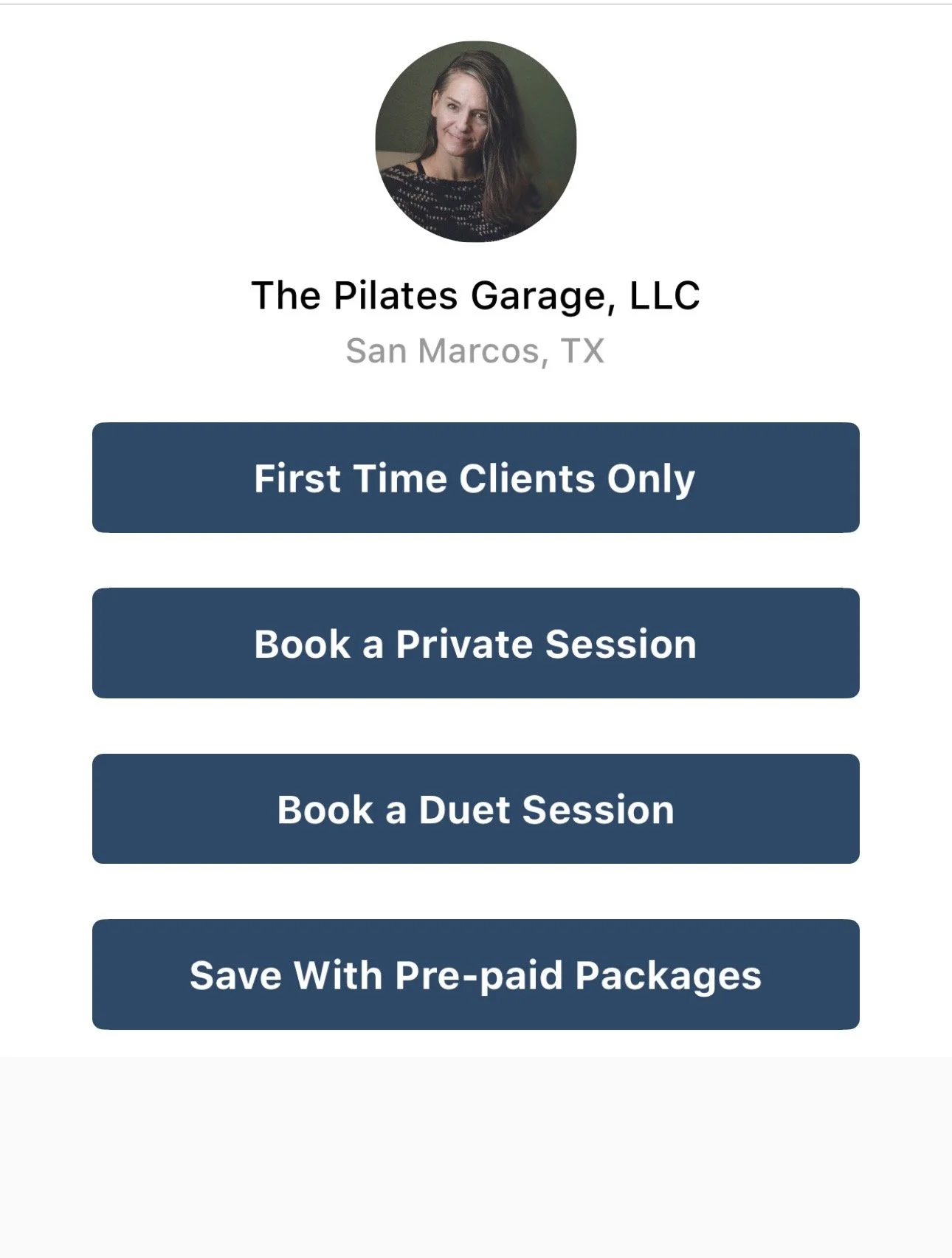
From the main booking page you see options. It is organized by the type of session you are interested in.
“First time Client offers”:
These are just for your first time. Once you’ve used one of these offers, you’ll be choosing from the other buttons moving forward.
“Book a Private Session”:
You can either book your private using your pre-paid package (if you have one) or book, and purchase, a single private session.
“Book a Duet Session”:
Same options here- book your duet using your pre-paid package or book, and purchase, a single duet session.
“Save with Pre-paid Packages”:
Choose from 5-packs or 10-packs for either privates or duets.
Purchasing a Package:
1.
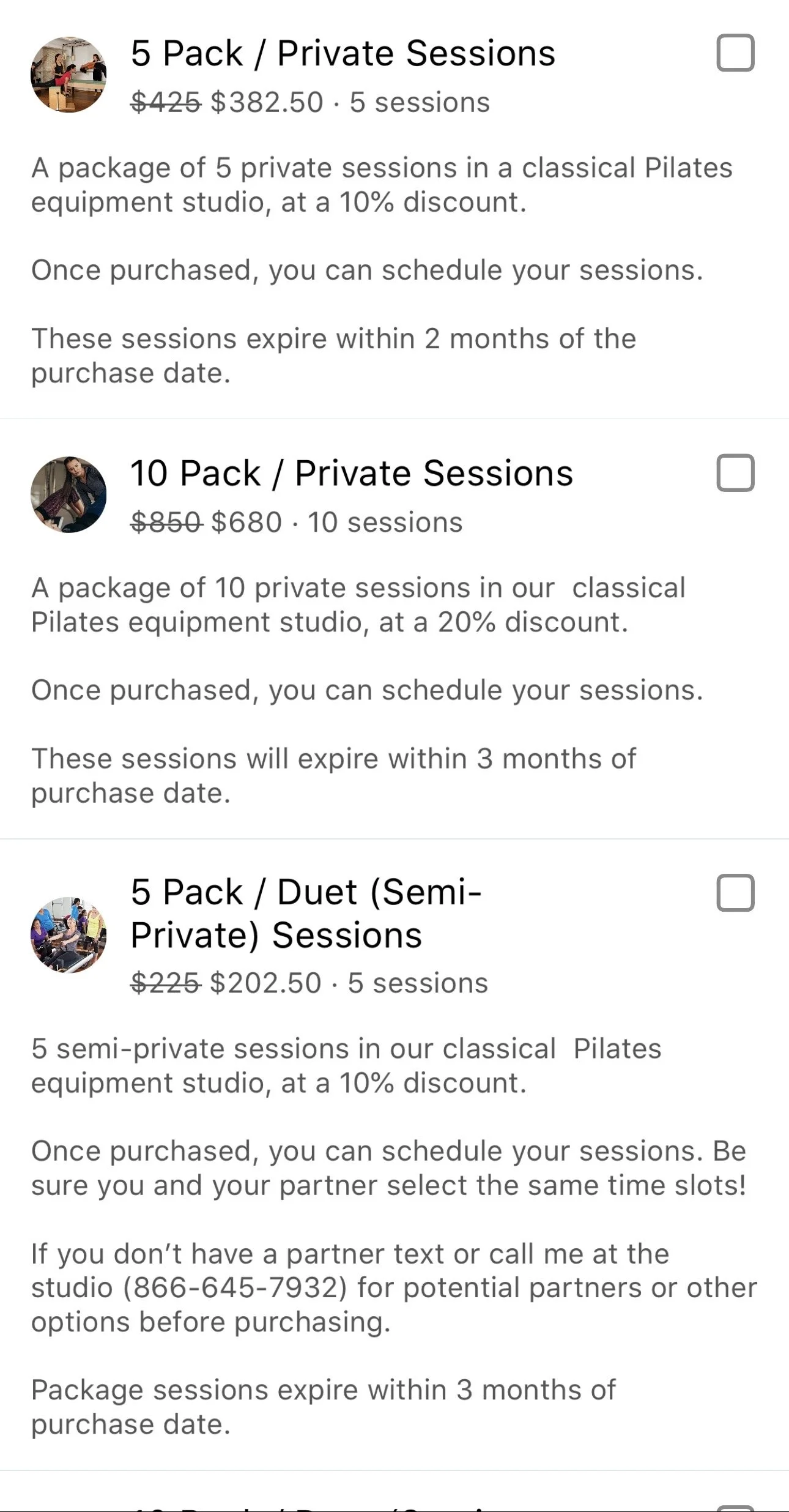
From the main booking page, click the “Save With Pre-paid Packages”
Choose the type of package you’re interested in.
2.
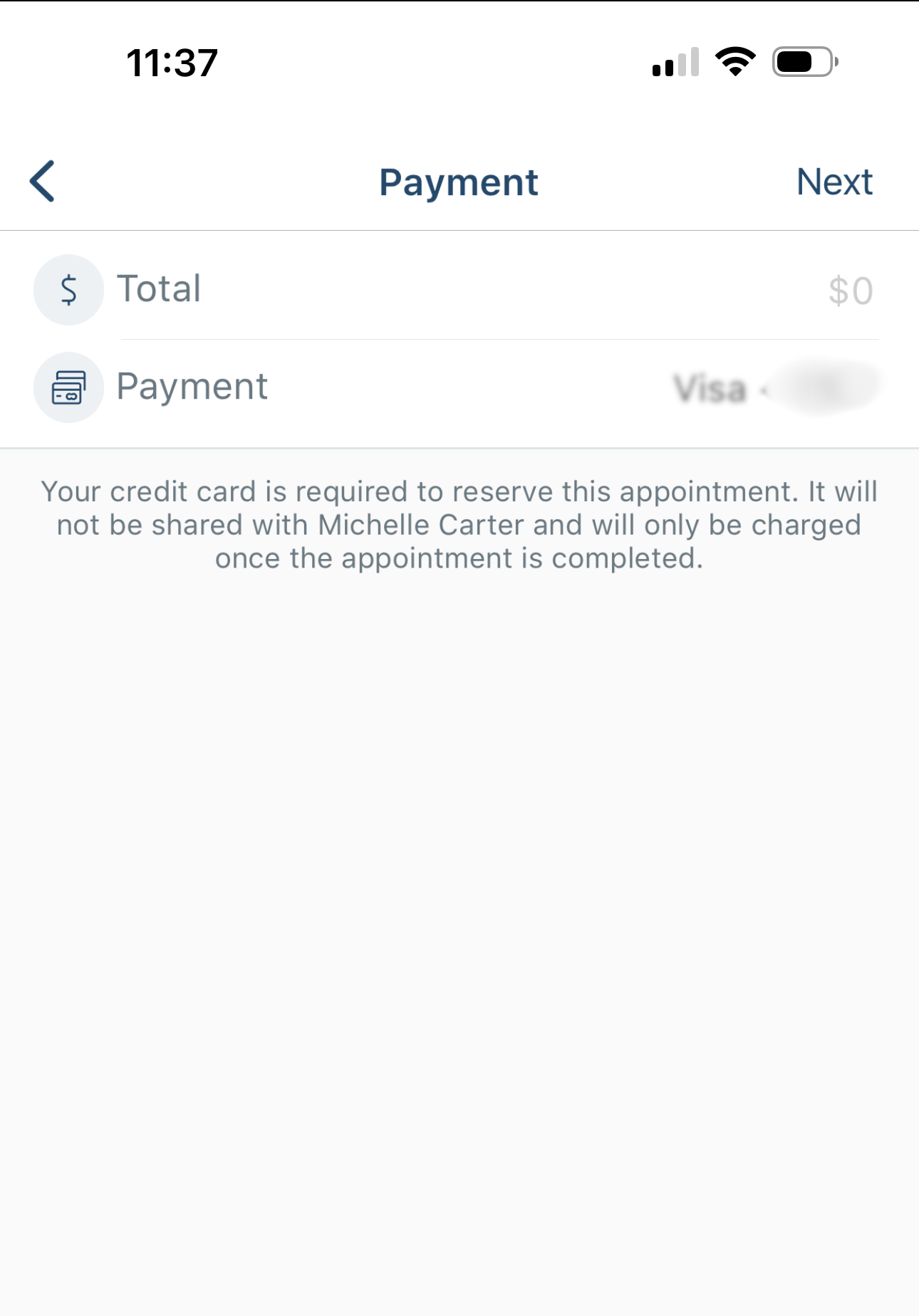
The next screen shows the package price and the card you have on file. Click next.
3.
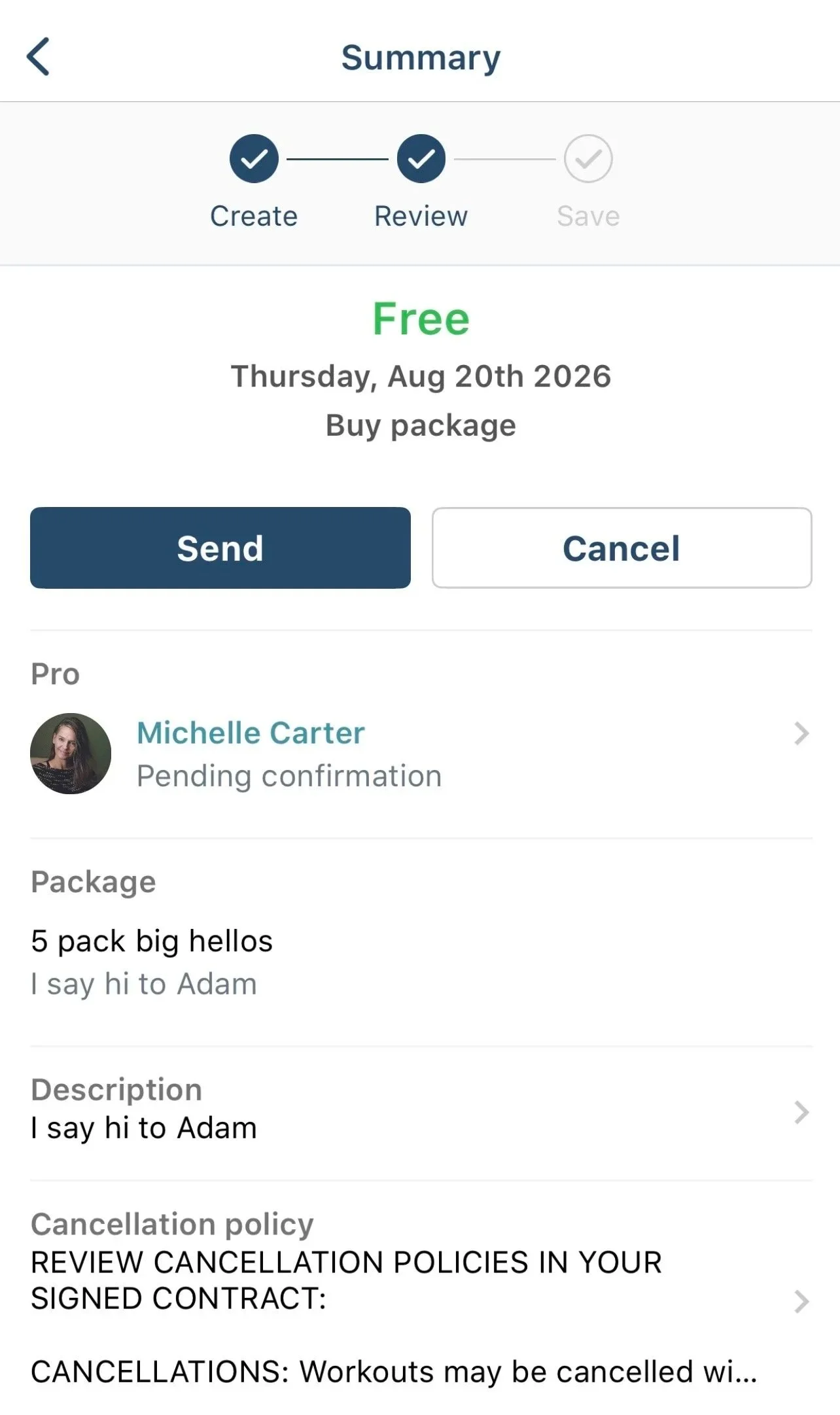
You will see a review screen with the purchase amount in green. If all looks good, finish by clicking “send” then the “buy package” pop up button
4.
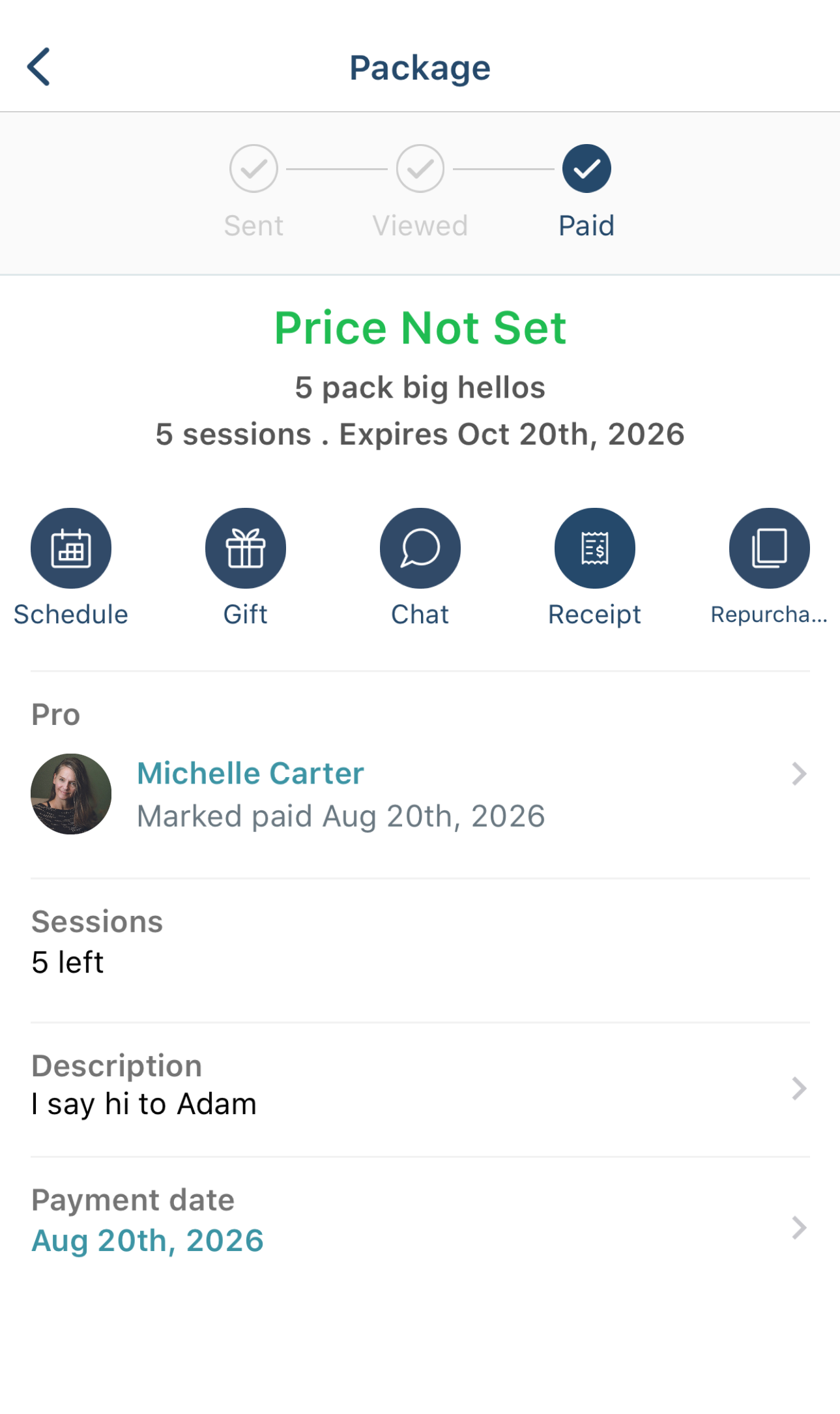
Next is the Paid screen, showing all the details (mine has no price because it is a dummy service. Also Big Hellos should be free.)
From here, you can use the icons across the page to check the schedule, apply an active gift card, chat with me, download a receipt, or repurchase the same type of package.
Once purchased, you need to actually book your session(s):
1.
From main booking page book either a private or duet sessions (You may use your package here or book & purchase a single session if you prefer.
2.
Select wehter you want an in-person session or virtual.
(This is an example from “Book a Private Session”)

3.
If you just wanted to look at my schedule, you are here.
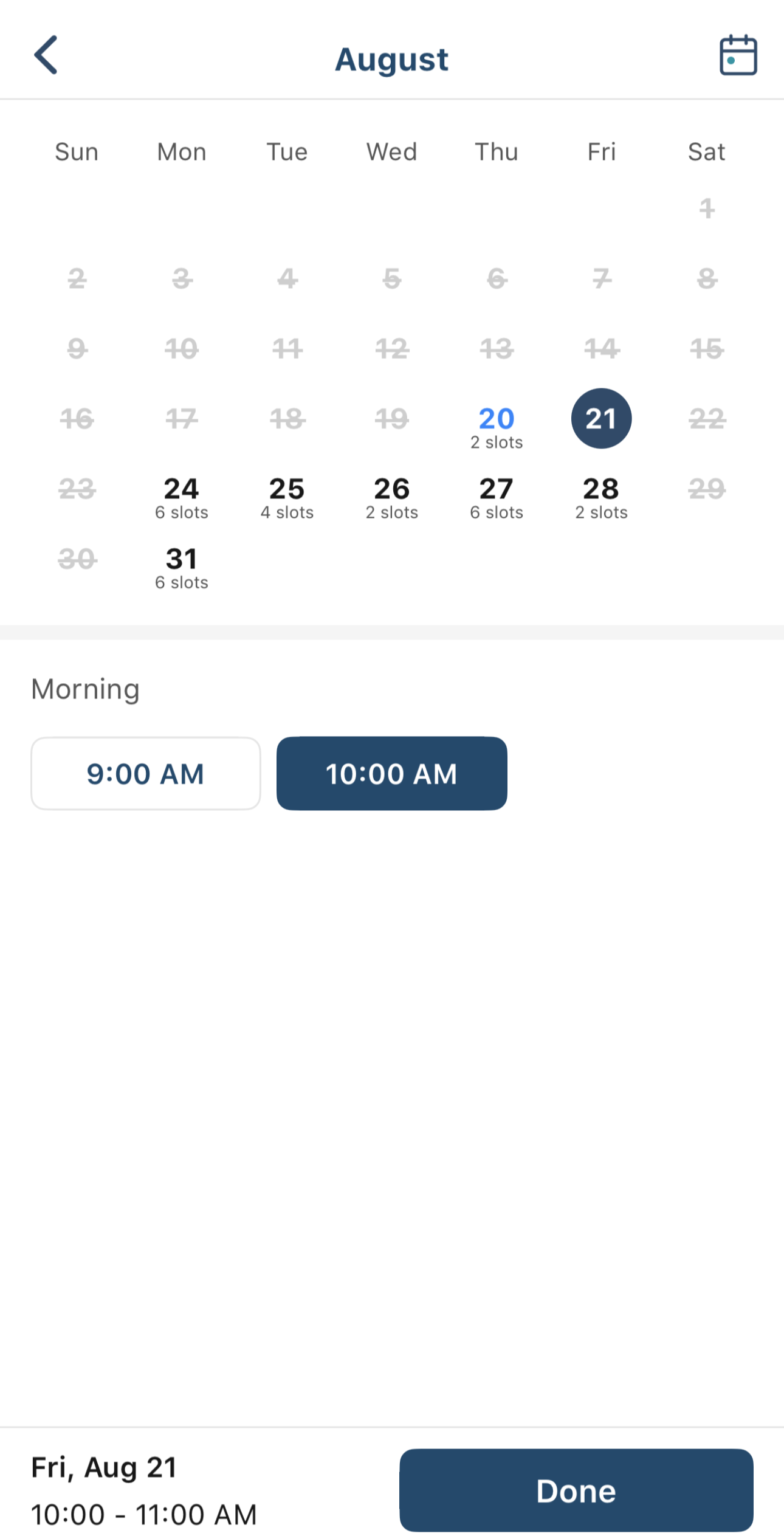
If you wanted to look then book, choose the date and time. Click done.
(If you use the app you can book multiple sessions at once)
4.
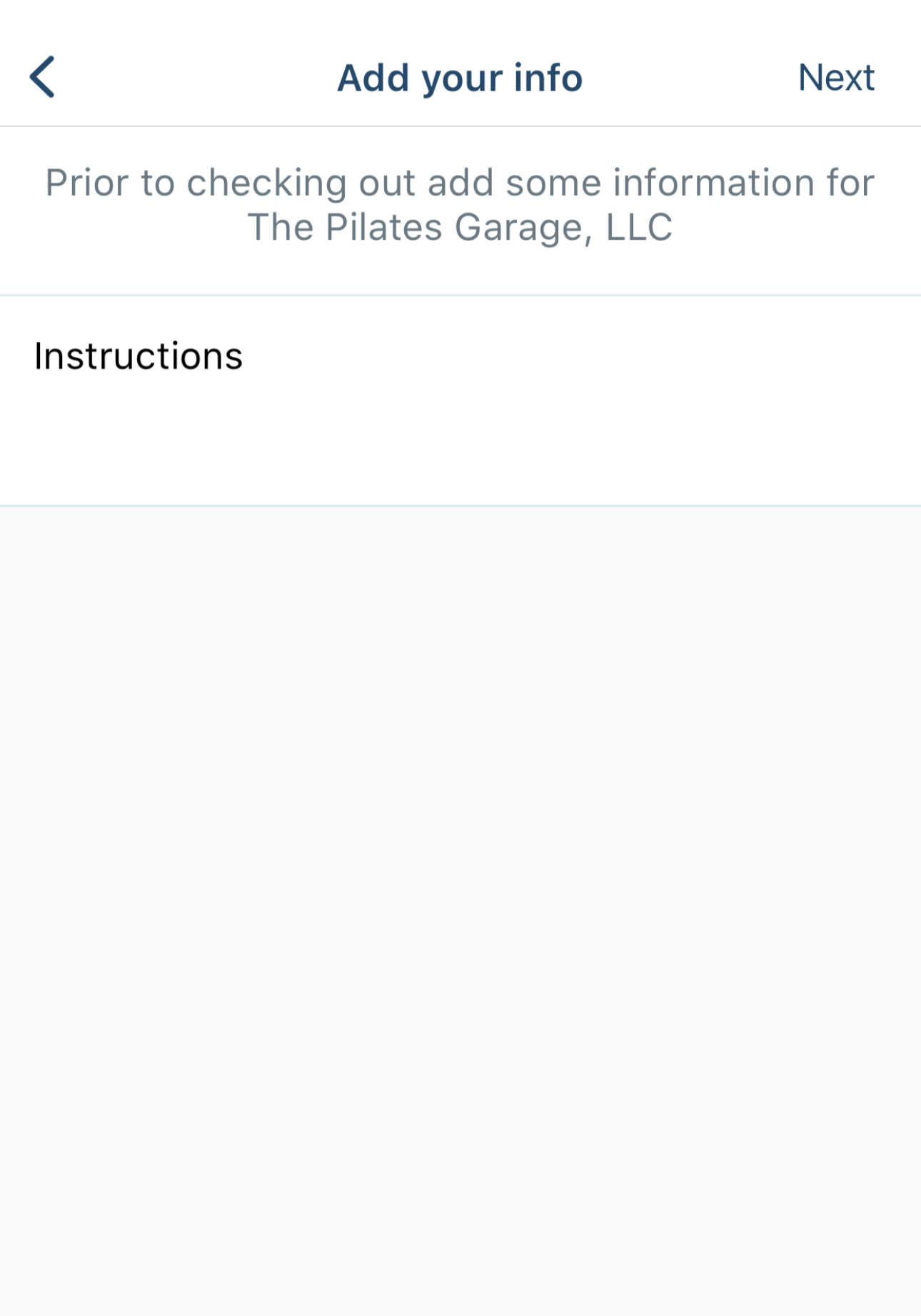
Leave a note for The Pilates Garage, if you want, and click next.
5.
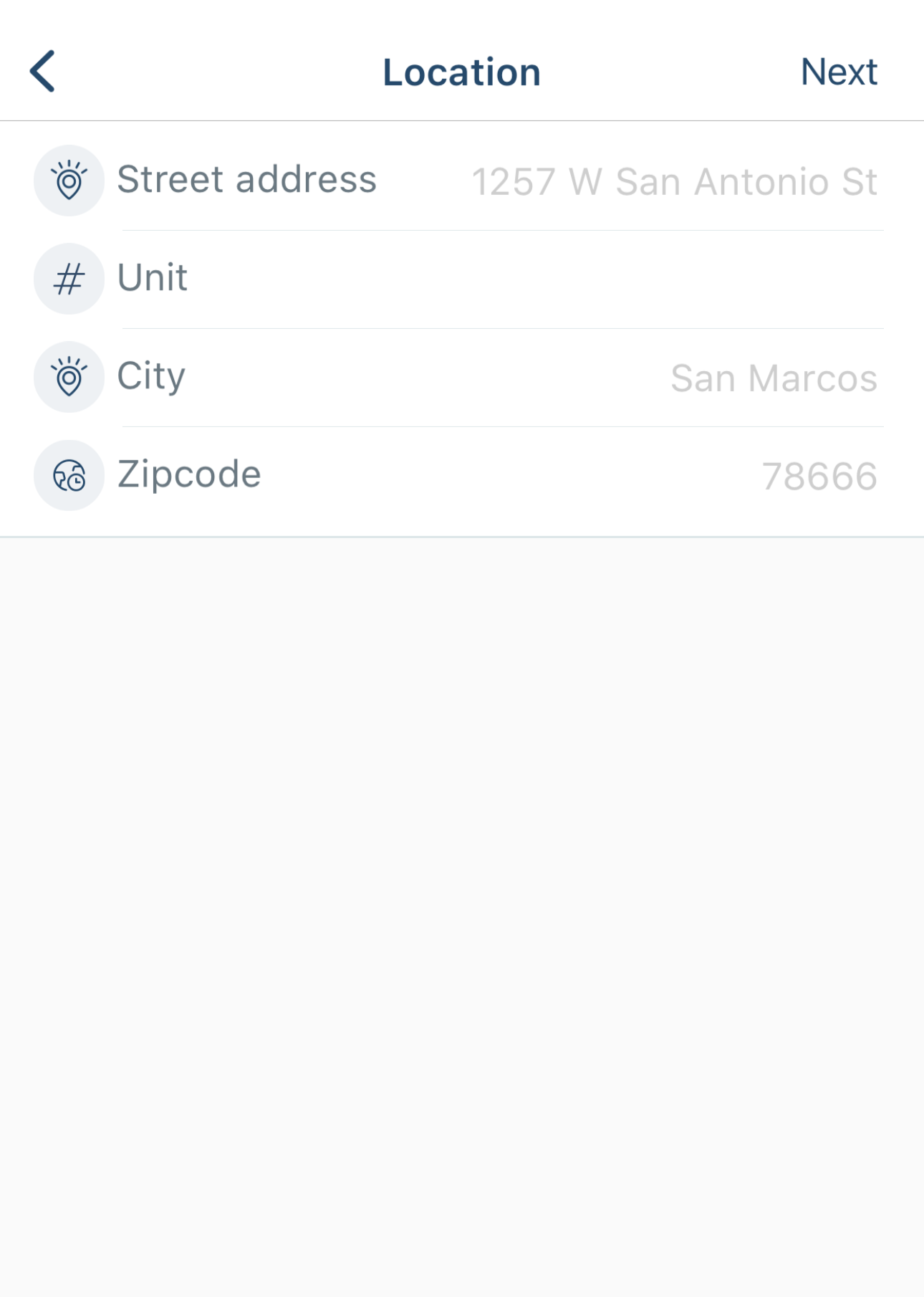
You’ll see the business address. Click next.
6.
You’ll see the session price and your card on file. Click next.
7.
This is the review page.
If your session will come from a prepaid package it will show that here. If not, it will show the price in green.
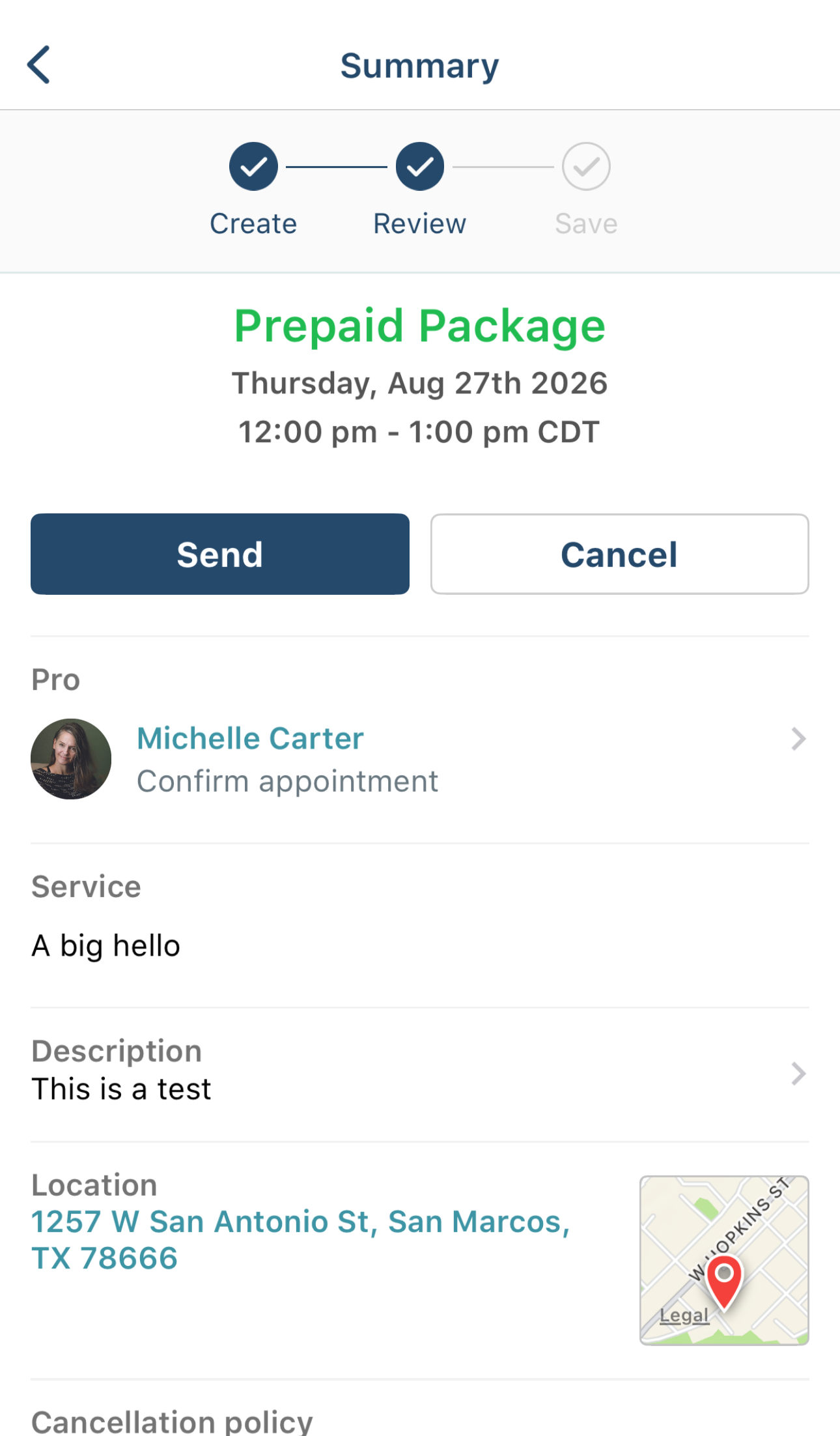
If you think it should come from a prepaid package but it does not say so-don’t continue. Instead check your number of remaining sessions to be sure.
To finish purchase, click “send” then the “confirm” pop up button.
8.
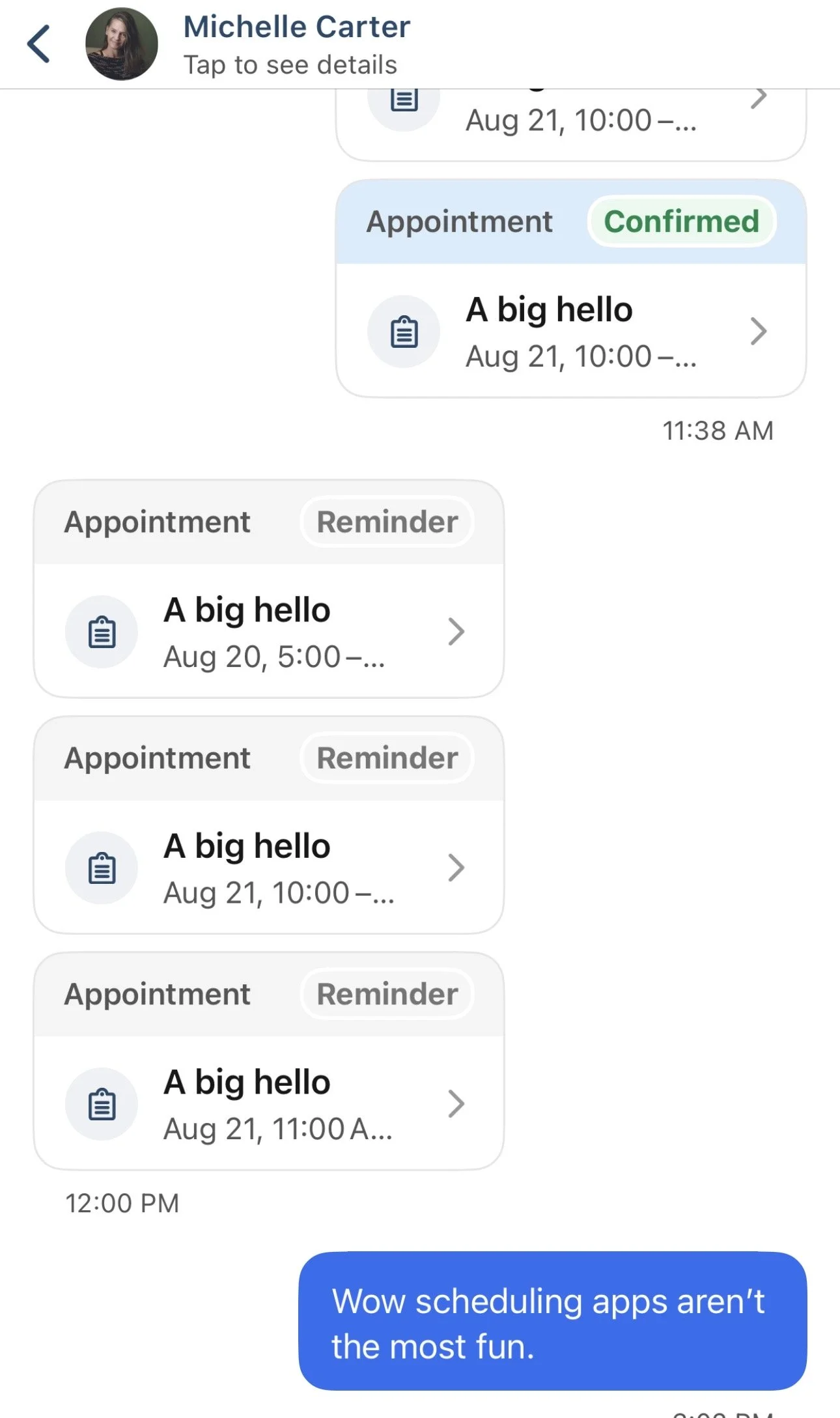
You will now see your purchase come up in chat history.
Want to see it on the schedule?
1.
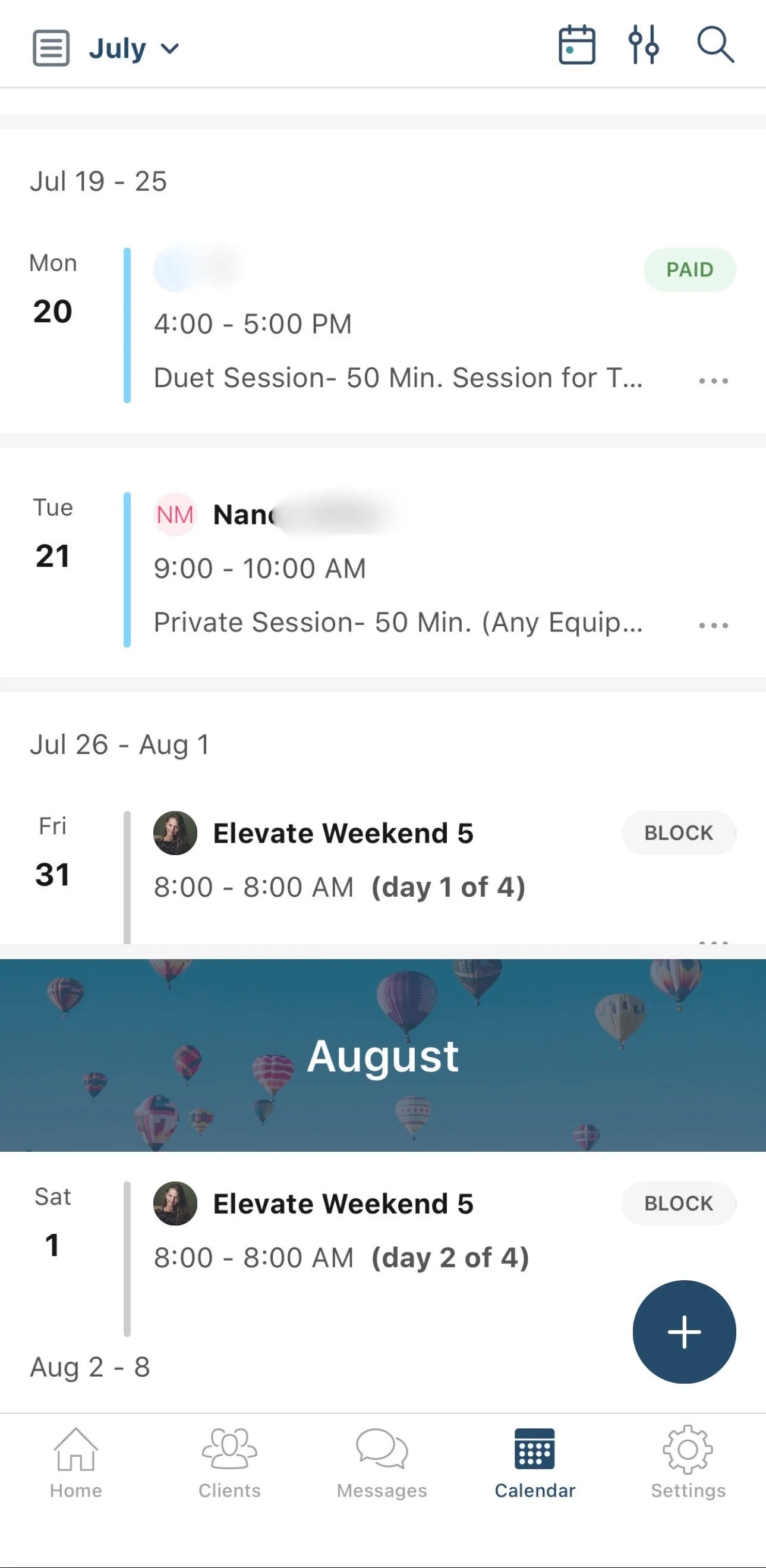
You can go to the calendar icon at the bottom of screen to see your agenda for the month
2.
and your booking will show at the appropriate time with a “paid” tag on it.
Want to check how many sessions you have left in a package?
1.
Go to home icon at bottom of screen.
2.
Click “My Account” at top to see all the things about your account.
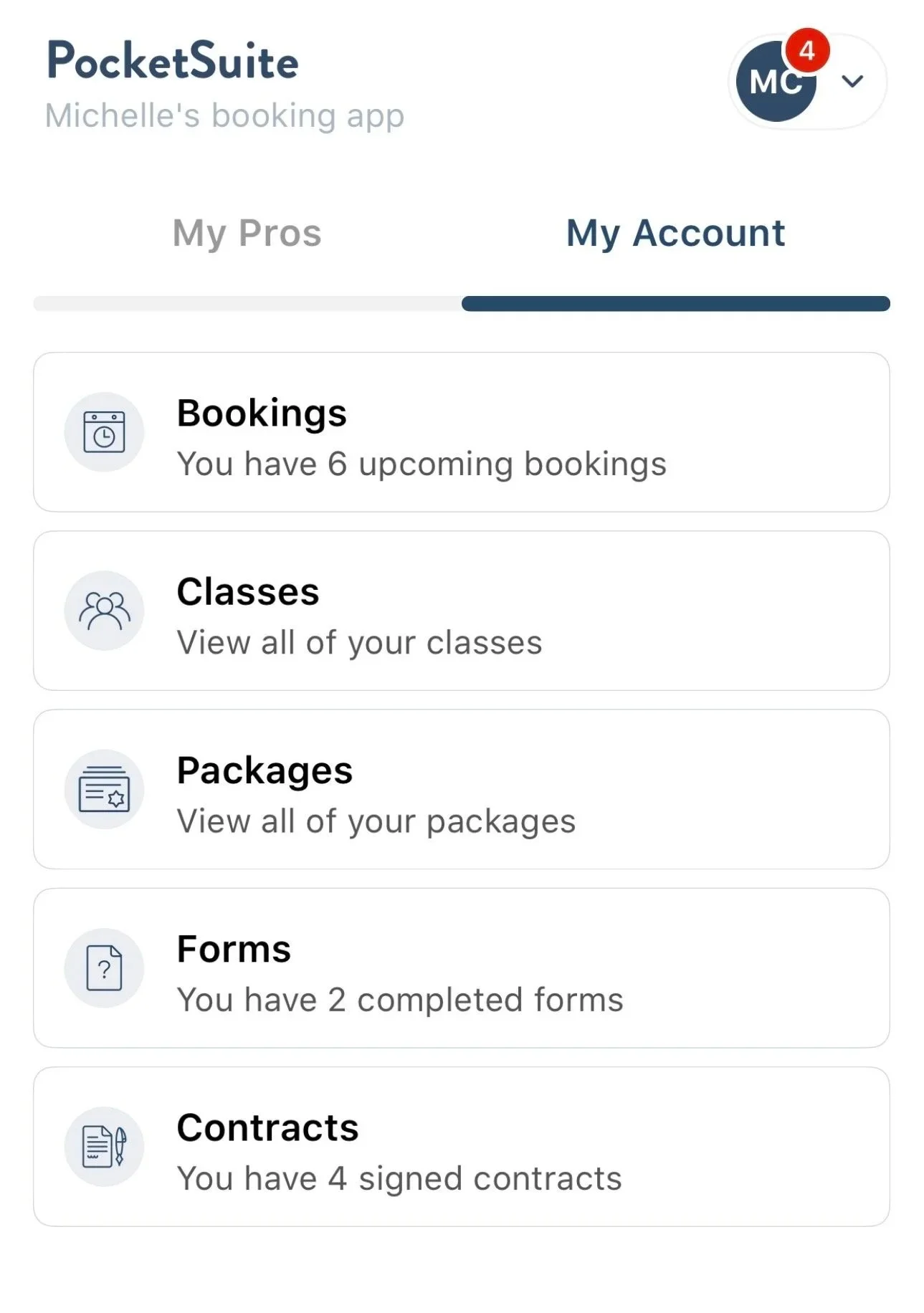
Your account page is also where you can see the forms and contracts you have signed and a record of previous sessions.
3.
A click of “Packages” shows how many sessions you have left in your package.